 SenSPool
Help center
Simple steps to run your pool service and solve problems in SenSPool.
Get started
- Create your account, confirm your email, then return to the app and sign in.
- Create your company: enter its name, state and time zone. Your free trial lasts 14 days; no card is needed.
- Owners and admins manage customers, routes, invoices and reports from Admin. Technicians see Today and their own visits. If you also run a route, assign it to yourself with “Me” and open My route.
Install SenSPool
- iPhone: open SenSPool in Safari. Tap Share, then Add to Home Screen. If you are in Chrome on iPhone, first open the same page in Safari.
- Android: open the app in Chrome. Use Install app in the browser menu or tap Install SenSPool in Settings.
- Computer: open the app in Chrome or Edge and use the install icon in the address bar or Install SenSPool in Settings.
- Open the installation guide for steps for your device.
Invite your team
- In Admin, open More → Team. Enter your teammate’s email and choose their role.
- Share the invitation link. It works once and expires after 7 days.
- Your teammate must create an account with that same email, confirm it, sign in and accept the invitation. A one-person company can skip this step.
Build routes
- Open Routes, choose a day and assign an active team member. Choose “Me” for your own route.
- Add pools, choose their frequency and arrange stops in the order you want. Use “Also other days” for a commercial pool serviced several days a week.
- Use Calendar for a change on one day only: add, move or skip a stop. The repeating route stays the same.
- At the end of the day, open Close the day. Review unfinished stops and move them or mark Pass; follow up in Pending.
Complete a visit
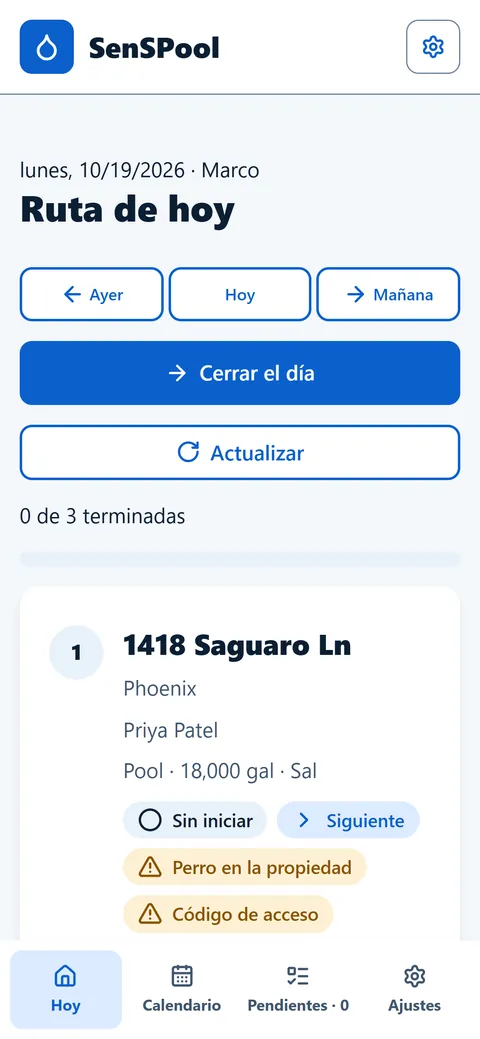
- Open Today, choose your stop and take the arrival photo to start the visit.
- Enter the water readings.
- Complete the checklist.
- Record the items used and any notes or custom work.
- Take the departure photo and complete the visit. The customer’s report is prepared according to their notice settings. If a technician skips a stop, a proof photo and reason are required.
Photo problems
- If the browser asks for camera access, allow it. If you previously blocked it, open your phone’s browser permissions and allow the camera for SenSPool.
- “We couldn’t read that photo”: take the photo again.
- If it still fails, close and reopen SenSPool, then try again. Update iOS or Chrome if an update is available.
- The phone processes each photo and removes location metadata before upload. SenSPool never asks for GPS location. If the error continues, open Settings → Report a problem.
Work without a signal
- During a visit, changes are stored on your phone when the connection is unavailable. Keep using the same phone and browser.
- Reconnect and keep SenSPool open so pending changes can be sent automatically. Check the sync status before leaving.
- Do not sign out or clear browser storage while changes are pending.
Invoices and payments
- Open More → Invoices, choose the month and generate drafts. Review the items before sending.
- Send an invoice so the customer receives its secure link. Customer payments use your company’s payment link.
- Record a payment, including a partial payment; the remaining balance stays visible.
- For an overdue invoice, send a payment reminder. Adjust automatic reminder days in Settings.
Understand your reports
- Open More → Reports and choose a month. Compare it with the previous month, or review customers and people on routes, including owners who run a route.
- Profit subtracts materials used in visits and operating expenses. Cash in and out tracks money received and spent. They answer different questions.
- Inventory on hand shows the remaining materials. Buying chemicals affects cash and inventory; using them affects profit.
- Use Export CSV to download the report for your records.
Plans and billing
- Prices are in USD per month: Solo $29 for 1 person on routes; Team $59 for up to 3; $15 for each extra person on routes. An owner or admin on a route counts. Admins without a route are free.
- Your company starts with a 14-day trial. The owner can open Settings → Billing to subscribe or manage billing.
- A past-due subscription has 7 days of grace. After that, it becomes read only: you can view and export but cannot create visits or invoices. An unpaid trial also becomes read only when it ends.
Sign-in problems
- “Your session expired”: sign out and sign in again. If you have unsent visit changes, reconnect and let them sync before signing out.
- If you confirmed your email in another app, return to SenSPool and sign in there.
- Forgot your password? Select Forgot password on the sign-in page and follow the email link.
- An invitation works once and lasts 7 days. Ask your admin for a new invitation if it was used or expired, and sign in with the invited email.
Connection problems
- “No connection”: check your mobile signal or Wi-Fi.
- Reconnect and retry. Pending visit changes remain on the phone and are sent when the connection returns.
- Do not clear browser data or sign out while changes are pending. If the connection works elsewhere but SenSPool still fails, follow the troubleshooting steps below.
Troubleshooting and reporting a problem
- Reconnect first and check for pending changes. Reload the page, or close and reopen the installed app.
- Update your browser or phone system if an update is available.
- In SenSPool, open Settings → Report a problem. The app shows the screen, error code, version and browser it will send. Add a short explanation, then select Send.
- Do not include passwords or customer details. Without a session or a connection, use the email support option.
Contact support
- Write to support@senspool.com.
- Describe what you tried and what happened. Include the error code if shown, but never passwords or customer information.